UI Toolkit에서 버튼을 클릭하면 효과음을 발생시키는 기능을 추가시키려고한다.
물론 스크립트를 통해 버튼 이벤트에서 클릭을 하면 사운드를 재생시키는 방법이 가장 간단하고 쉽겠지만, 한번 새로운 방식도 해보려고 한다.
바로 [UxmlElement] 와 [UxmlAttribute] 를 사용해서, 인스펙터에서 사운드를 할당하고 자동으로 이벤트를 등록해주는 버튼을 만들도록 할 것이다.
[UxmlElement] 와 [UxmlAttribute] 는 UIToolkit에서 커스텀 VisualElement를 UXML에서 사용할 수 있게 해주는 최신 Attribute 방식이다.
예전에는 UxmlFactory, UxmlTraits를 직접 구현했는데, 요즘 Unity에서는 이 Attribute 방식이 추가돼서 훨씬 간단해졌다.
예전 방식
using UnityEngine;
using UnityEngine.UIElements;

public class IconLabel : VisualElement
{
    public new class UxmlFactory : UxmlFactory<IconLabel, UxmlTraits> { }

    public new class UxmlTraits : VisualElement.UxmlTraits
    {
        private readonly UxmlStringAttributeDescription _text =
            new() { name = "text", defaultValue = "" };

        private readonly UxmlAssetAttributeDescription<Texture2D> _icon =
            new() { name = "icon" };

        public override void Init(VisualElement ve, IUxmlAttributes bag, CreationContext cc)
        {
            base.Init(ve, bag, cc);

            IconLabel element = (IconLabel)ve;

            element.text = _text.GetValueFromBag(bag, cc);
            element.icon = _icon.GetValueFromBag(bag, cc);

            element.Refresh();
        }
    }

    public string text;
    public Texture2D icon;

    private Label _label;
    private Image _image;

    public IconLabel()
    {
        _image = new Image();
        _label = new Label();

        Add(_image);
        Add(_label);
    }

    public void Refresh()
    {
        _label.text = text;
        _image.image = icon;
    }
}
최신 방식
using UnityEngine.UIElements;

[UxmlElement]
public partial class IconLabel : VisualElement
{
    [UxmlAttribute]
    public string text;

    [UxmlAttribute]
    public Texture2D icon;

    private Label _label;
    private Image _image;

    public IconLabel()
    {
        _image = new Image();
        _label = new Label();

        Add(_image);
        Add(_label);

        RegisterCallback<AttachToPanelEvent>(_ =>
        {
            _label.text = text;
            _image.image = icon;
        });
    }
}
우선 최신 방식을 통해 간단하게 사운드 버튼을 만들었다.
그리고 이제 UXML에서 ui:Button을 SoundButton으로 변경하면 잘 작동하지만, 좀 더 세부적인 설정을 적용할 수 있도록 코드를 추가하였다.
using UnityEngine;
using UnityEngine.UIElements;

[UxmlElement]
public partial class SoundButton : Button
{
    [UxmlAttribute]
    public AudioClip clickSound { get; set; }

    public SoundButton()
    {
        RegisterCallback<ClickEvent>(OnClick);
    }

    private void OnClick(ClickEvent evt)
    {
        if (clickSound != null)
            AudioManager.Instance.PlaySFX(clickSound);
    }
}
이번에는 [UxmlObject] 도 활용하였는데, [UxmlObject] 는 VisualElement 가 아닌 일반 객체를 UXML 안에서 사용할 수 있게 해주는 기능이다.
- [UxmlElement]
→ 화면에 존재하는 UI 요소 - [UxmlObject]
→ UI 요소가 사용하는 설정 데이터/구조체 느낌의 객체
using System.Collections.Generic;
using UnityEngine.Audio;
using UnityEngine.UIElements;

// 1. UxmlObject — 인스펙터의 Sound Effects 항목 하나
[UxmlObject]
public partial class SoundEffect
{
    public enum TriggerEvent { OnPointerClick, OnPointerEnter, OnPointerDown }

    [UxmlAttribute] public TriggerEvent EventType { get; set; }
    [UxmlAttribute] public AudioResource AudioResource { get; set; }
}

// 2. 커스텀 버튼에 리스트로 연결
[UxmlElement]
public partial class SoundButton : Button
{
    [UxmlObjectReference("sound-effects")]
    public List<SoundEffect> SoundEffects { get; set; } = new();

    public SoundButton()
    {
        RegisterCallback<ClickEvent>(_ => Play(SoundEffect.TriggerEvent.OnPointerClick));
        RegisterCallback<PointerEnterEvent>(_ => Play(SoundEffect.TriggerEvent.OnPointerEnter));
        RegisterCallback<PointerDownEvent>(_ => Play(SoundEffect.TriggerEvent.OnPointerDown));
    }

    private void Play(SoundEffect.TriggerEvent trigger)
    {
        var sfx = SoundEffects?.Find(s => s.EventType == trigger);
        if (sfx?.AudioResource != null)
            AudioManager.Instance.PlaySFX(sfx.AudioResource);
    }
}
변경 전 UXML
<ui:UXML xmlns:xsi="http://www.w3.org/2001/XMLSchema-instance" xmlns:ui="UnityEngine.UIElements" xmlns:uie="UnityEditor.UIElements" noNamespaceSchemaLocation="../../../UIElementsSchema/UIElements.xsd" editor-extension-mode="False">
<Style src="project://database/Assets/_UI/USS/LobbyStyle.uss?fileID=7433441132597879392&guid=9867ba563b7bd1f4792ff122d79cb6ae&type=3#LobbyStyle"/>
<ui:VisualElement name="container" style="flex-grow: 1; background-color: rgb(182, 223, 255); -unity-background-image-tint-color: rgb(255, 255, 255);">
<ui:Label text="Keymates!" name="title" style="-unity-text-generator: advanced; -unity-text-auto-size: none; -unity-font-definition: url("project://database/Assets/_Fonts/Super%20Mindset.ttf?fileID=12800000&guid=25d36e1c9a0e3e04a96c6f2dd3a11a74&type=3#Super Mindset"); background-color: rgba(0, 0, 0, 0); color: rgb(255, 192, 136); text-shadow: 10px 10px 0 rgb(27, 94, 176); -unity-text-align: middle-center; font-size: 200px; height: 400px;"/>
<ui:Button text="Start" name="start-btn" class="lobby-button"/>
<ui:Button text="Tutorial" name="tutorial-btn" class="lobby-button"/>
<ui:Button text="Exit" name="exit-btn" class="lobby-button"/>
</ui:VisualElement>
</ui:UXML>
변경 후 UXML
<ui:UXML xmlns:xsi="http://www.w3.org/2001/XMLSchema-instance" xmlns:ui="UnityEngine.UIElements" xmlns:uie="UnityEditor.UIElements" xmlns:custom="UnityEngine.UIElements" noNamespaceSchemaLocation="../../../UIElementsSchema/UIElements.xsd" editor-extension-mode="False">
<Style src="project://database/Assets/_UI/USS/LobbyStyle.uss?fileID=7433441132597879392&guid=9867ba563b7bd1f4792ff122d79cb6ae&type=3#LobbyStyle"/>
<ui:VisualElement name="container" style="flex-grow: 1; background-color: rgb(182, 223, 255); -unity-background-image-tint-color: rgb(255, 255, 255);">
<ui:Label text="Keymates!" name="title" style="-unity-text-generator: advanced; -unity-text-auto-size: none; -unity-font-definition: url("project://database/Assets/_Fonts/Super%20Mindset.ttf?fileID=12800000&guid=25d36e1c9a0e3e04a96c6f2dd3a11a74&type=3#Super Mindset"); background-color: rgba(0, 0, 0, 0); color: rgb(255, 192, 136); text-shadow: 10px 10px 0 rgb(27, 94, 176); -unity-text-align: middle-center; font-size: 200px; height: 400px;"/>
<SoundButton text="Start" name="start-btn" class="lobby-button"/>
<SoundButton text="Tutorial" name="tutorial-btn" class="lobby-button"/>
<SoundButton text="Exit" name="exit-btn" class="lobby-button"/>
</ui:VisualElement>
</ui:UXML>
변경한 부분은 두 곳뿐이다.
- ui:Button → SoundButton
- xmlns:custom="UnityEngine.UIElements" 추가
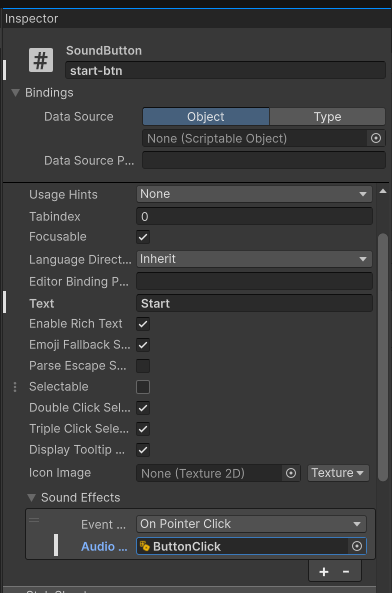
이제 버튼 인스펙터의 Attributes 항목에서 Sound Effects 가 잘 표시되는 것이 보인다.
여기에 사운드를 할당하면 게임에서 클릭했을 때 정상적으로 사운드가 실행된다.
'개발일지 - Keymates! > 개발' 카테고리의 다른 글
| 캐릭터 변경 (0) | 2026.05.26 |
|---|---|
| AI 활용 3D 캐릭터 제작 (0) | 2026.05.21 |
| 실루엣 렌더링 기능 추가 (0) | 2026.05.21 |